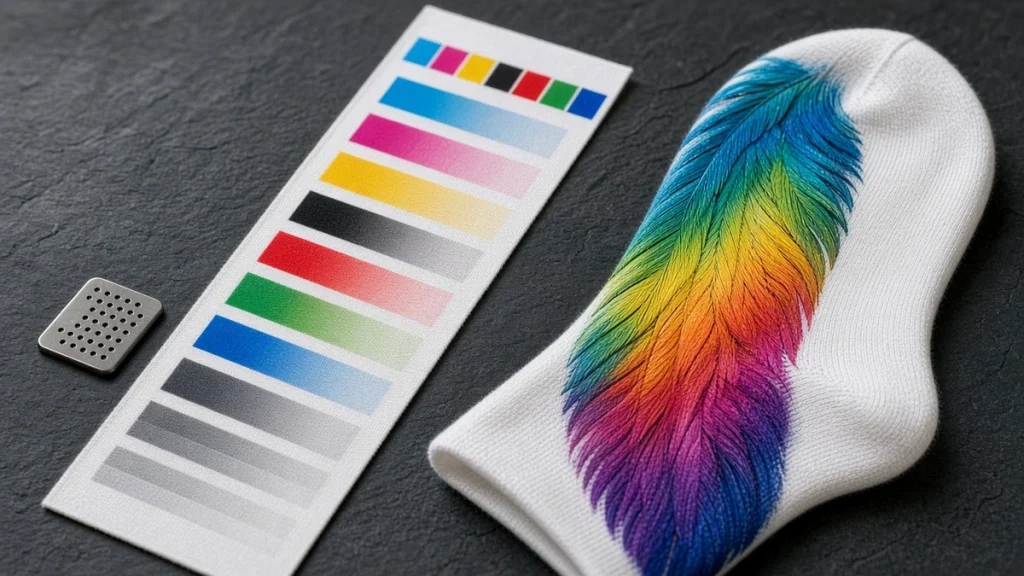
When people talk about a socks printer, they usually focus on the hardware: rollers, printheads, carriage. But every print passes through software first. The RIP, short for Raster Image Processor, translates your artwork into precise instructions for each nozzle. A good RIP setup can be the difference between flat, muddy socks and vibrant, consistent ones.
What a RIP does
At its core, the RIP converts a design file into the dot patterns the printheads fire. Along the way it handles several important jobs:
- Color conversion. It maps design colors to the ink set using a color profile.
- Ink limits. It controls how much ink each area receives so the fabric is not oversaturated.
- Resolution and passes. It sets print quality modes, balancing detail and speed.
- Screening. It decides how dots are arranged to create smooth gradients.
- Layout. It positions the design on the sock template and handles the wraparound join.
- Queue management. It lines up jobs so operators can print efficiently.
Profiles: the heart of color
The profile tells the RIP how a specific ink and fabric combination behaves. Polyester with disperse ink behaves very differently from cotton with reactive ink, so each needs its own profile. Profiles are usually built by printing a test chart, finishing it exactly as in production, measuring or evaluating the result and letting the software calculate corrections. Our socks printer color management guide explains the bigger picture.
Ink limits and why they matter on socks
Socks are knitted, stretchy and relatively thin. Too much ink can spread, cause blurry edges or leave a stiff feel. Too little produces weak color. The RIP lets you set total ink limits and per-channel limits. Getting these right for each fabric is one of the most valuable tuning steps after installation.
Print modes: quality vs speed
Most RIPs offer several modes. Higher resolution and more passes give finer detail and smoother gradients but take longer. Lower resolution prints faster and is often perfectly adequate for bold patterns. A practical approach is to define two or three standard modes, such as "production", "detail" and "sample", and train operators when to use each.
Handling the wraparound
A socks printer prints a continuous tube, so the left and right edges of the design meet. The RIP and template must align so this join is invisible. Designers should prepare files at the correct width for each roller size; the RIP then places them exactly. More on this in preparing artwork for a socks printer.
Job queues and production efficiency
In busy production, the RIP queue becomes the production schedule. Grouping jobs by sock size reduces roller changes. Grouping by fabric avoids switching profiles. Some businesses connect their online store so orders flow automatically into folders the RIP watches. See connecting your online store to a socks printer workflow.
Variable data and personalization
For personalized socks, each pair may carry a different name, number or photo. Some workflows generate individual files from a template and a spreadsheet of names. Combined with a well-organized RIP queue, this makes personalized socks practical at scale.
Backups and version control
Your RIP settings, profiles and templates represent many hours of tuning. Back them up regularly and keep a record of what changed and why. If a computer fails or a new operator changes a setting, you can restore a known-good configuration quickly.
Choosing and supporting the RIP
When buying a socks printer, ask:
- Which RIP is included, and is it licensed for your use?
- Are profiles for your inks and fabrics supplied?
- Who supports the RIP if problems arise?
- Can you get help creating profiles for new blanks?
Ningbo Colorido emphasizes advanced RIP workflow software and visual positioning systems for intelligent production management; whichever supplier you choose, make sure software support is part of the package.
Signs your RIP setup needs attention
- Colors vary between operators using the same file.
- Gradients show banding even with healthy nozzles.
- Edges look soft on fine text.
- The wraparound join is visible.
- Operators spend a long time setting up each job.
Each of these points to a settings, profile or template issue rather than a hardware fault.
Keeping RIP settings organized
As your range grows, the number of RIP settings grows with it. Name presets clearly, for example by fiber, blank and quality mode, and remove old ones you no longer use. Back up settings regularly so a computer failure does not mean rebuilding everything. When several operators share a socks printer, agree who may change presets. Our color management guide explains how profiles fit in.
Conclusion
The RIP is the brain of your socks printer. Invest time in profiles, ink limits, print modes and templates, and protect that work with backups. When software and hardware are tuned together, output quality and efficiency rise together. To learn more, explore our user guide and FAQs, or contact our team for help with your RIP setup.
Leave A Comment